 Productivity
Text to Image Creator
Text to Image Creator helps you turn ideas, descriptions, and prompts into visual artwork from a simple Windows app.
Productivity
Record your screen, microphone, and system audio, add a webcam bubble, annotate screenshots, and trim MP4 tutorials in one Windows app.
Screenshots
Why it helps
FAQ
Screen Recorder Suite supports Windows 10 version 1809 or later and Windows 11 on x64. Camera and audio features require suitable devices and Windows permissions.
Yes. Capture your microphone, system audio, or both. You can also record audio-only sessions or add a webcam bubble to a screen recording.
The supported screen recording workflow uses Compatible MP4 at 24 or 30 FPS through 1080p. 60 FPS is available only after capability checks approve it. Camera-only recording uses a 720p canvas at 24 or 30 FPS.
The paid edition adds no watermark or artificial recording time limit. Available storage, device capabilities, and system resources still apply.
Drawing, keystroke and click overlays, advanced microphone cleanup and echo cancellation, Sharp Text and Lossless Master profiles, repeat and scrolling screenshots, OCR, GIF export, and manual compatibility optimization are Preview features with limitations. Use Compatible without Preview tools for essential recordings.
Store description
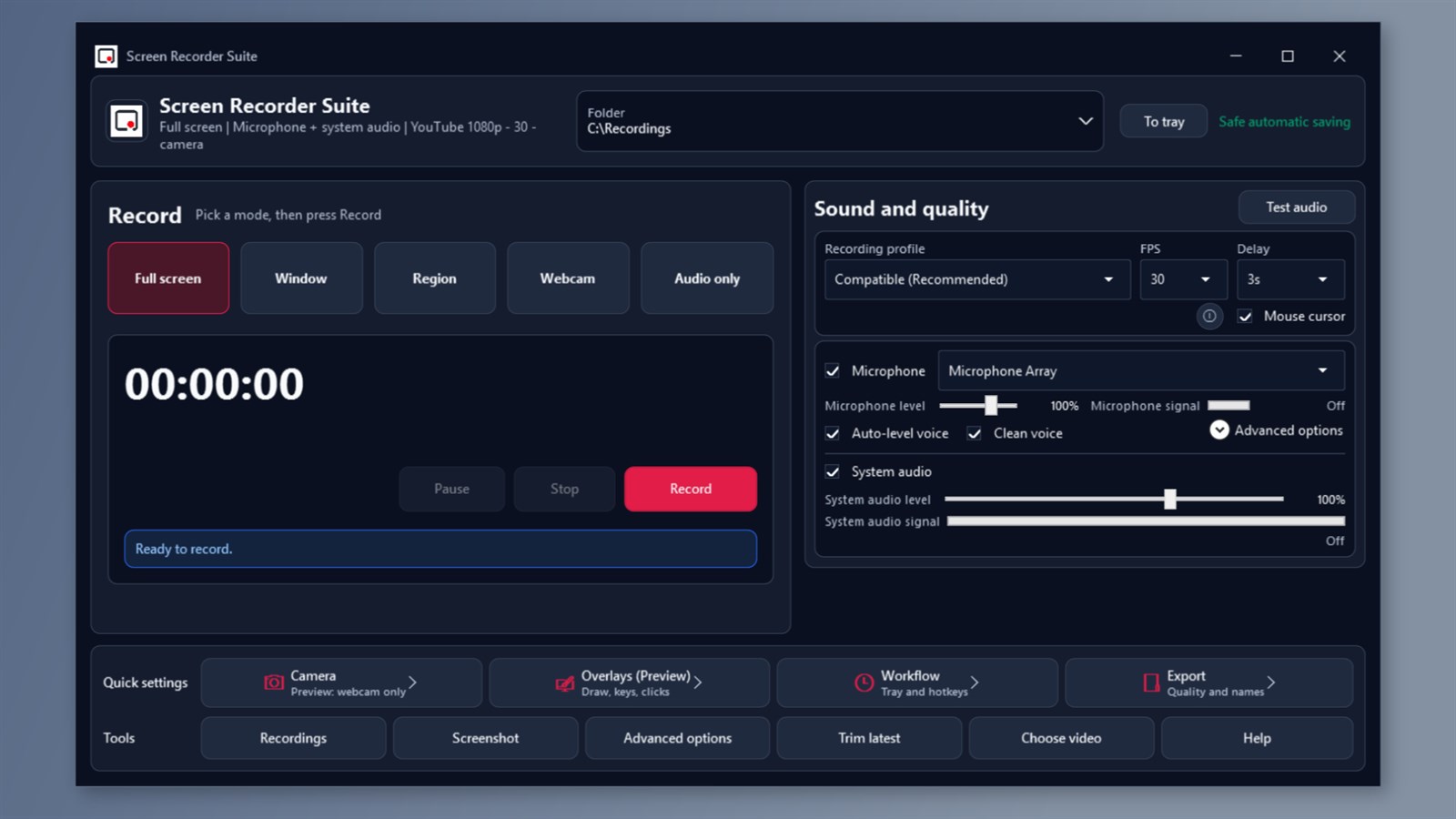
Record your screen, voice, and system audio to make clear tutorials, lessons, software demos, and how-to videos. Screen Recorder Suite brings screen recording, webcam recording, screenshots, and simple video trimming together in one Windows app. Capture exactly what you need Record the full screen, a selected app window, or a custom region.
Include the mouse cursor to make your steps easier to follow, or hide it for a cleaner result. Use the countdown to get ready, then pause and resume as you work. Add your voice and camera Record your microphone, system audio, or both. Adjust each source's level and check your audio before starting. Basic voice auto-level and cleanup options are included. Choose audio-only recording for narration or voice notes.
Record your webcam on its own, or add a camera bubble to a screen recording with an adjustable size and corner position. Take screenshots that explain more Capture a screen, monitor, window, or selected area and save as PNG or JPEG. Add boxes, arrows, circles, text, pen marks, highlights, or a zoom circle in the screenshot editor. Blur private details in the editor and save the edited image before sharing it.
Finish and organize your recordings Save video as MP4 in your chosen folder. Open your files from the Recording Manager, or trim a recording by choosing its start and end times. Trimming creates a separate output file and preserves the original. Controls that fit your workflow Use global keyboard shortcuts, the compact controller, and tray controls. Set a scheduled start or automatic stop.
Progressive saving, interrupted-recording recovery, and low-storage protection help you manage longer sessions. Recording and editing run locally; optional diagnostic reporting uses an internet connection and can be disabled. Included in the paid edition No added watermark and no artificial recording time limit. Available storage, device capabilities, and system resources still apply.
Choose light or dark appearance and a user interface available in 12 languages. Supported recording settings For Windows 10 version 1809 or later and Windows 11, x64. The supported screen recording workflow uses Compatible MP4 at 24 or 30 FPS through 1080p. 60 FPS is available only when capability checks approve it.
Camera recording uses Compatible at 24 or 30 FPS; camera-only video uses a 720p canvas, and camera bubbles refresh at up to 15 FPS. Camera and audio features require suitable devices and Windows permissions.
Optional Preview tools Drawing, keystroke and click overlays, advanced microphone cleanup and echo cancellation, Sharp Text and Lossless Master profiles, repeat and scrolling screenshots, OCR, GIF export, and manual compatibility optimization are Preview features. They are still being tested and have limitations. Use Compatible without Preview tools for essential recordings.
Related apps
Productivity
Text to Image Creator helps you turn ideas, descriptions, and prompts into visual artwork from a simple Windows app.
 Productivity
JSON Viewer & Formatter helps developers, analysts, and QA teams format, validate, minify, and convert JSON in a lightweight Windo...
 Productivity
MegaPass Your Ultimate Secure Password Manager. Keep all your passwords safe, encrypted, and easily accessible with no sign-ups or...